
Building a Password-Protected Servo Control System with Arduino Uno R4 Wi-Fi
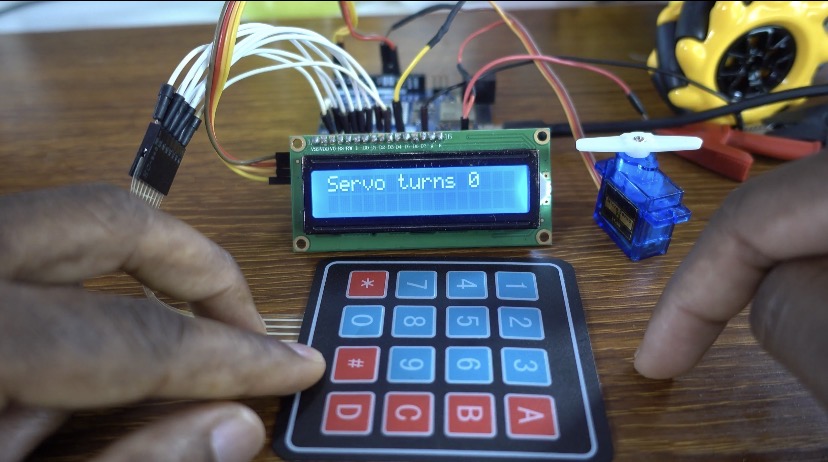
In this tutorial, we will construct a system that uses an Arduino Uno R4 Wi-Fi to control a 9g SG90 servo motor through a password-protected interface. An LCD display will be used to display prompts and messages, and a 4×4 keypad will be used to enter passwords. This project gives your Arduino skills a real-world application by combining hardware and code to create a secure control system.
We also have other tutorials on Arduino Uno R4 WI-FI board:
- Arduino Uno R4 Wi-Fi: Complete Setup Guide
- Interface Arduino Uno R4 WIFI with RFID RC522 Module
- Control a Servo Motor Using Arduino Uno R4 WiFi and RC522 RFID Module
Watch the video
You might want to watch the video tutorial or keep reading this page for the written instructions.
Components used
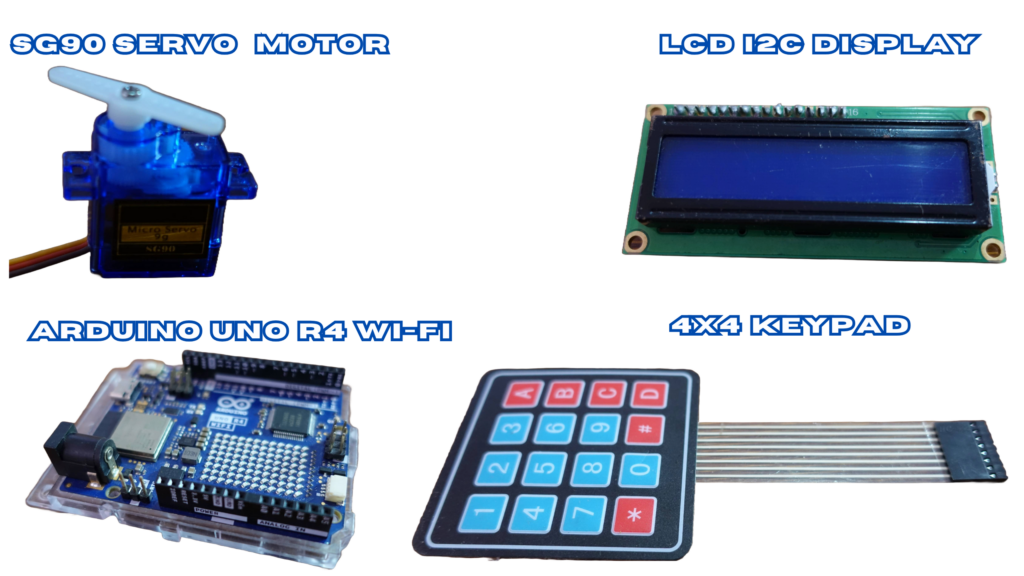
- Arduino Uno R4 Wi-Fi
- 4×4 matrix membrane keypad
- Servo motor 9g, SG90
- LCD I2C display
4×4 Matrix membrane keypad
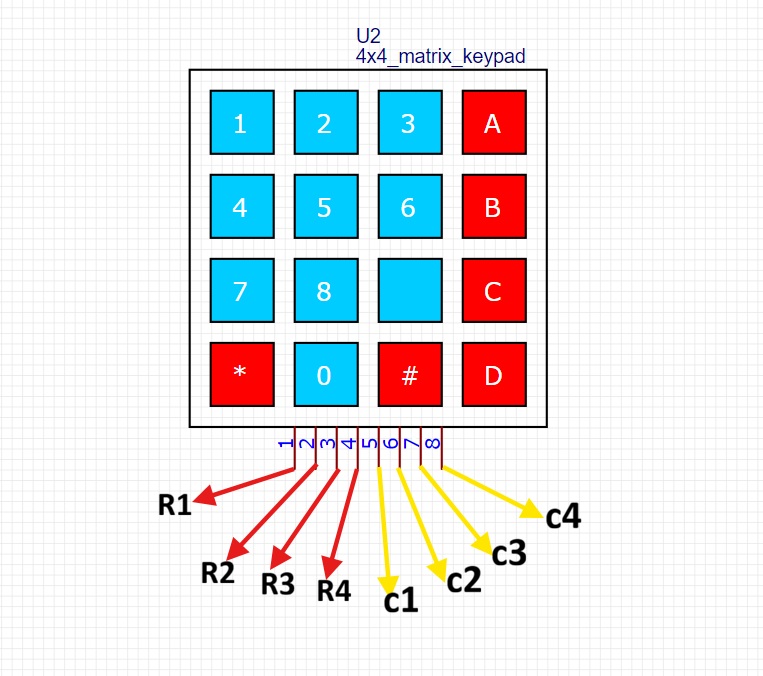
In this tutorial, we are using a 4×4 matrix membrane keypad with 16 keys, used for inputting the password
SG90 Servo Motor
The SG90 servo motor I’m using has three cables and is incredibly small.
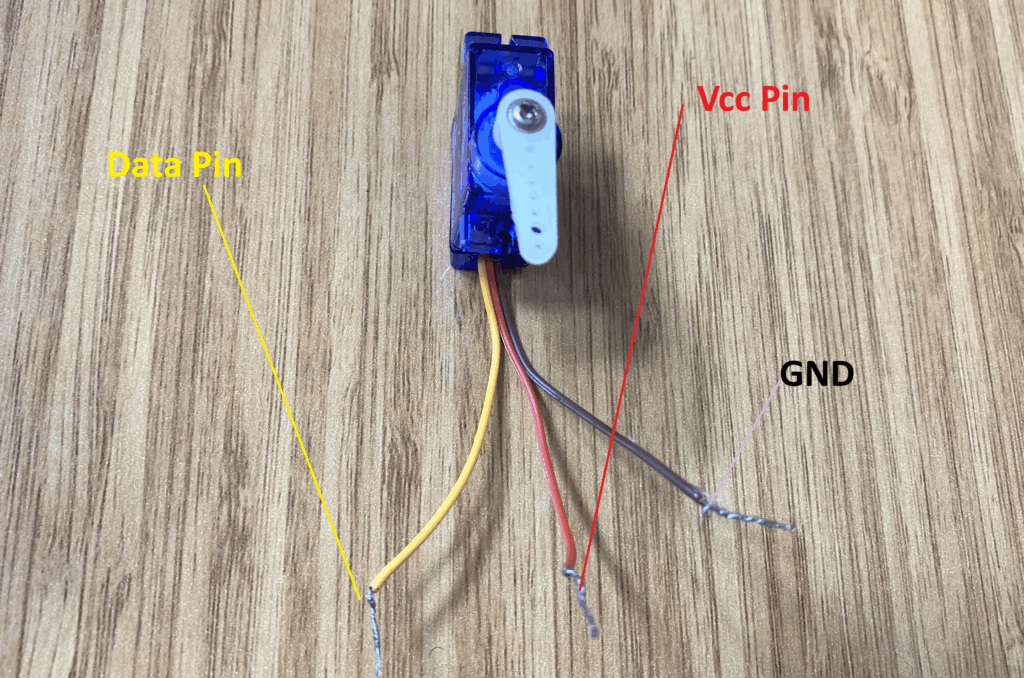
- The red cable’s VCC pin
- Data pin (yellow cable)
- The brown cable’s GND pin
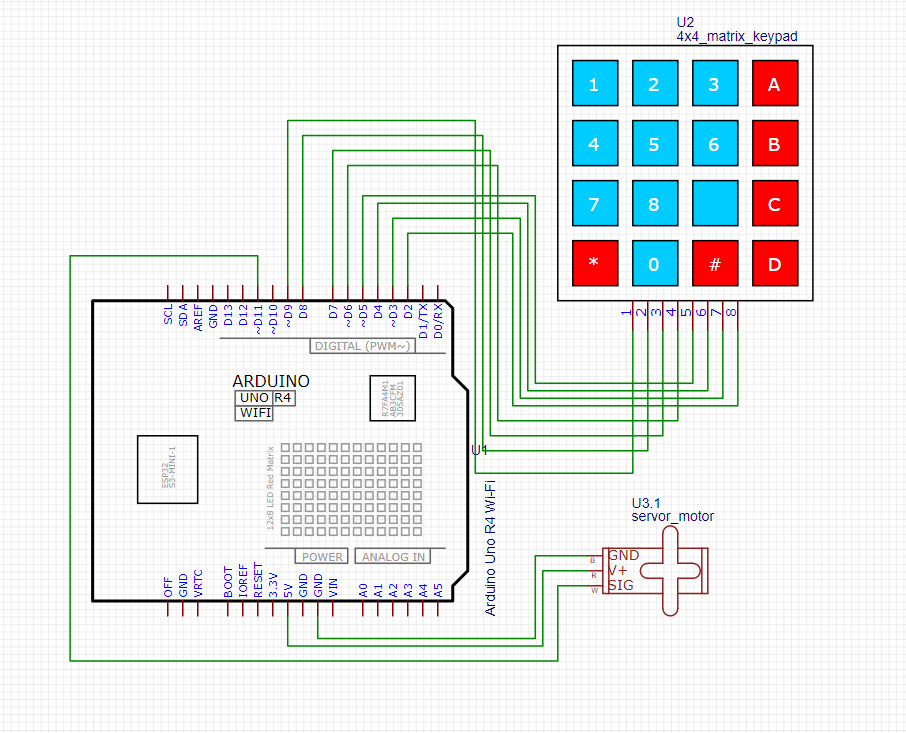
We attach the servo motor’s red cable to the Arduino Uno R4 Wi-Fi 5V pin, its data pin (yellow jumper) to an Arduino Uno R4 Wi-Fi pin that can produce PWM signals, and its GND pin (brown cable) to the Arduino Uno R4 Wi-Fi GND pin.
Circuit diagram
Install the DIYables_Keypad Library
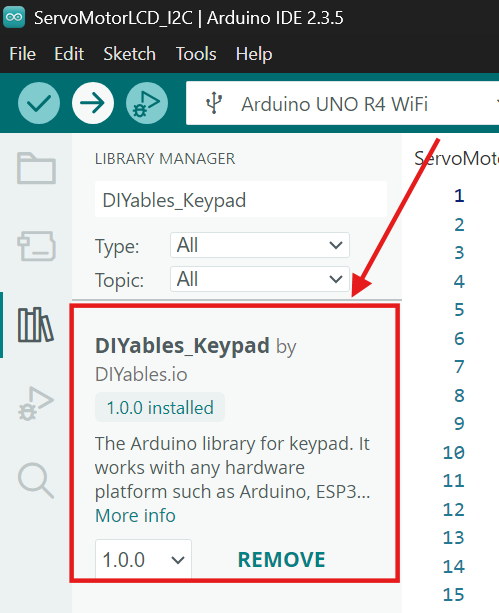
Make sure to install the DIYables_Keypad library to read input from matrix keypads using Arduino boards.
- Open the Arduino IDE.
- Click on Sketch → Include Library → Manage Libraries.
- In the Library Manager search bar, type “DIYables Keypad”.
- Look for the library named “DIYables_Keypad by DIYables.io”.
- Click Install to add the library to your Arduino IDE.
Once installed, the library will be ready to use in your keypad-based projects, allowing you to easily detect key presses and handle keypad input.
Install the Servo library
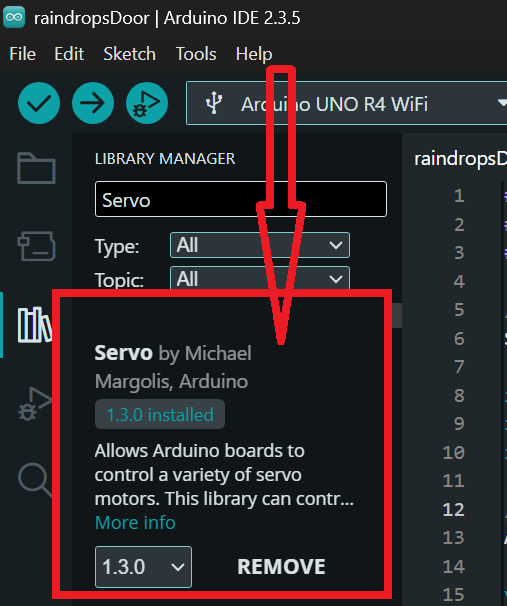
Make sure to install the Servo library to send and receive from RFID cards and key fobs electromagnetic waves at 13.56 million cycles per second.
In the search bar, type “Servo” and look for the library named “Servo by Michael Margolis, Arduino”.
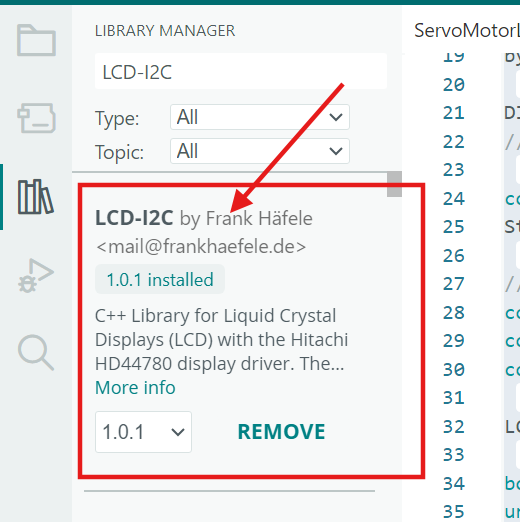
Install the LCD-I2C Library
Make sure to install the LCD-I2C library to control I2C LCD displays (such as 16×2 or 20×4) using Arduino boards.
- Open the Arduino IDE.
- Click on Sketch → Include Library → Manage Libraries.
- In the Library Manager search bar, type “LCD-I2C”.
- Look for the library named “LCD-I2C by Frank Hafele”.
- Click Install to add the library to your Arduino IDE.
After installation, the library allows you to easily display text on an I2C LCD using minimal wiring and simple commands.
Arduino code
#include <DIYables_Keypad.h>  // Include the DIYables_Keypad library for keypad functionality
#include <Wire.h>             // Include the Wire library for I2C communication
#include <LCD-I2C.h>          // Include the LCD-I2C library for controlling the LCD over I2C
#include <Servo.h>            // Include the Servo library for controlling a servo motor

Servo myservo;  // Create a Servo object to control a servo motor

const int ROW_NUM = 4;    // Define the number of rows in the keypad (4)
const int COLUMN_NUM = 4; // Define the number of columns in the keypad (4)

char keys[ROW_NUM][COLUMN_NUM] = {
  {'1','2','3', 'A'},
  {'4','5','6', 'B'},
  {'7','8','9', 'C'},
  {'*','0','#', 'D'}
};  // Define the characters on the keypad, corresponding to their positions

byte pin_rows[ROW_NUM] = {9, 8, 7, 6}; // Define the pins connected to the rows of the keypad
byte pin_column[COLUMN_NUM] = {5, 4, 3, 2}; // Define the pins connected to the columns of the keypad

DIYables_Keypad keypad = DIYables_Keypad(makeKeymap(keys), pin_rows, pin_column, ROW_NUM, COLUMN_NUM);
// Initialize the keypad object with the keymap, row pins, and column pins

const String password = "1234A"; // Store the correct password in a String variable
String input_password;           // Create a variable to store the user's input

// LCD address and dimensions
const int lcdAddress = 0x27;     // Set the I2C address of the LCD (change if needed)
const int lcdColumns = 16;       // Set the number of columns on the LCD
const int lcdRows = 2;           // Set the number of rows on the LCD

LCD_I2C lcd(lcdAddress, lcdColumns, lcdRows);  // Initialize the LCD object with address, columns, and rows

bool ledState = false;           // Variable to track the LED/servo state (false = off, true = on)
unsigned long messageStartTime = 0; // Variable to store the start time of messages
const unsigned long messageDuration = 2000; // Set the duration for showing messages (2 seconds)
bool showMessage = false;        // Flag to check if a message is currently being shown
String messageText = "";         // Variable to store the message to display

void setup() {
  Serial.begin(9600);            // Start the serial communication at 9600 baud
  Serial.println("Keypad 4x4 password"); // Print a message to the serial monitor

  myservo.attach(11);  // Attach the servo to pin 11

  myservo.write(0);  // Set the servo to its initial position (0 degrees)

  // Initialize the LCD
  lcd.begin();                // Initialize the LCD
  lcd.display();              // Turn on the LCD display
  lcd.backlight();            // Turn on the LCD backlight
  lcd.setCursor(0, 0);        // Set the cursor to the first column of the first row
  lcd.print("Enter Password:"); // Print "Enter Password:" on the LCD

  input_password.reserve(32); // Reserve 32 characters for the input password string (optional)
}

void loop() {
  char key = keypad.getKey(); // Get the key pressed on the keypad

  if (key) {  // Check if a key was pressed
    Serial.println(key);  // Print the key to the serial monitor

    if (key == '*') {
      input_password = ""; // Clear the input password
      showMessage = true;  // Set the flag to show a message
      messageText = "Input cleared"; // Set the message text
      messageStartTime = millis(); // Store the current time
      lcd.clear();  // Clear the LCD display
      lcd.setCursor(0, 0); // Set the cursor to the first column of the first row
      lcd.print(messageText); // Display the message on the LCD
    } else if (key == '#') {
      if (password == input_password) { // Check if the input password matches the stored password
        if (ledState) {
          // Turn off the servo
          myservo.write(0);
          showMessage = true; // Set the flag to show a message
          messageText = "Servo turns 0"; // Set the message text
          messageStartTime = millis(); // Store the current time
          lcd.clear();  // Clear the LCD display
          lcd.setCursor(0, 0); // Set the cursor to the first column of the first row
          lcd.print(messageText); // Display the message on the LCD
          ledState = false; // Update the LED/servo state to off
        } else {
          // Turn on the servo
          myservo.write(180);
          showMessage = true; // Set the flag to show a message
          messageText = "Servo turns 180"; // Set the message text
          messageStartTime = millis(); // Store the current time
          lcd.clear();  // Clear the LCD display
          lcd.setCursor(0, 0); // Set the cursor to the first column of the first row
          lcd.print(messageText); // Display the message on the LCD
          ledState = true; // Update the LED/servo state to on
        }
        Serial.println(ledState ? "LED is ON" : "LED is OFF"); // Print the LED/servo state to the serial monitor
      } else {
        showMessage = true;  // Set the flag to show a message
        messageText = "Incorrect"; // Set the message text to "Incorrect"
        messageStartTime = millis(); // Store the current time
        lcd.clear();  // Clear the LCD display
        lcd.setCursor(0, 0); // Set the cursor to the first column of the first row
        lcd.print(messageText); // Display the message on the LCD
      }

      input_password = ""; // Clear the input password regardless of success or failure
    } else if (key == 'B') { // Check if the 'B' key (backspace) was pressed
      if (input_password.length() > 0) {
        input_password.remove(input_password.length() - 1); // Remove the last character from the input password
        Serial.println("Last character removed"); // Print a message to the serial monitor
        lcd.setCursor(0, 1); // Set the cursor to the first column of the second row
        lcd.print("                "); // Clear the second row of the LCD
        lcd.setCursor(0, 1); // Set the cursor back to the first column of the second row
        lcd.print(getPasswordDisplay()); // Update the LCD with the current input
      }
    } else if (key == 'C') { // Check if the 'C' key (clear) was pressed
      input_password = ""; // Clear the entire input password
      showMessage = true;  // Set the flag to show a message
      messageText = "Characts removed"; // Set the message text
      messageStartTime = millis(); // Store the current time
      lcd.clear();  // Clear the LCD display
      lcd.setCursor(0, 0); // Set the cursor to the first column of the first row
      lcd.print(messageText); // Display the message on the LCD
    } else {
      input_password += key; // Append the pressed key to the input password
      Serial.println("Updated Input: " + input_password); // Print the updated input password to the serial monitor
      lcd.setCursor(0, 1); // Set the cursor to the first column of the second row
      lcd.print("                "); // Clear the second row of the LCD
      lcd.setCursor(0, 1); // Set the cursor back to the first column of the second row
      lcd.print(getPasswordDisplay()); // Update the LCD with the current input
    }
  }

  // Check if a message is currently being shown
  if (showMessage) {
    if (millis() - messageStartTime >= messageDuration) { // Check if the message duration has passed
      lcd.clear();  // Clear the LCD display
      lcd.setCursor(0, 0); // Set the cursor to the first column of the first row
      lcd.print("Enter Password:"); // Display "Enter Password:" on the LCD
      lcd.setCursor(0, 1); // Set the cursor to the first column of the second row
      lcd.print("                "); // Clear the second row of the LCD
      lcd.setCursor(0, 1); // Set the cursor back to the first column of the second row
      lcd.print(getPasswordDisplay()); // Update the LCD with the current input
      showMessage = false; // Reset the message flag
    }
  }
}

// Function to get the display version of the password
String getPasswordDisplay() {
  String displayString = "";
  for (int i = 0; i < input_password.length(); i++) {
    displayString += "*"; // Replace each character with an asterisk
  }
  return displayString; // Return the masked password
}
How the Project Works
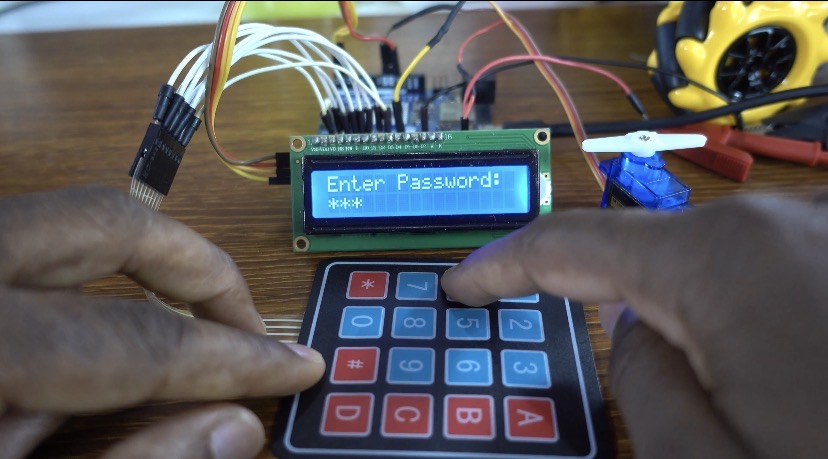
When the system powers on, the LCD displays “Enter Password:”, prompting the user to type the secret code using the 4×4 keypad.
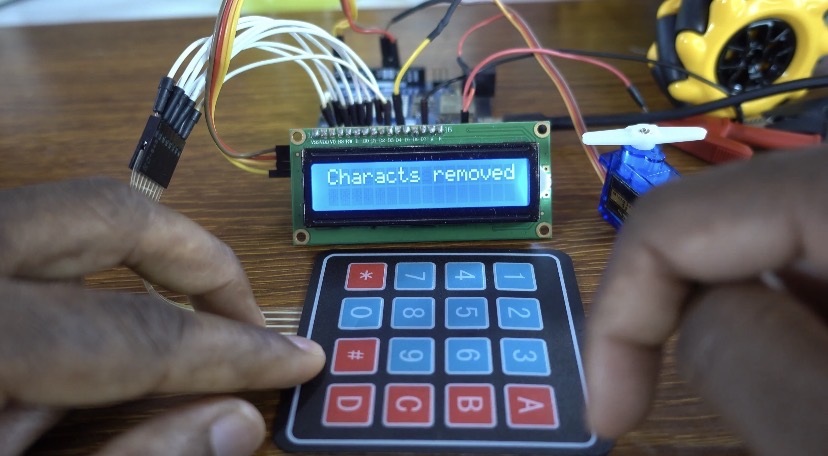
If the user presses the clear or backspace keys, the written password is removed from the screen while keeping the system active.
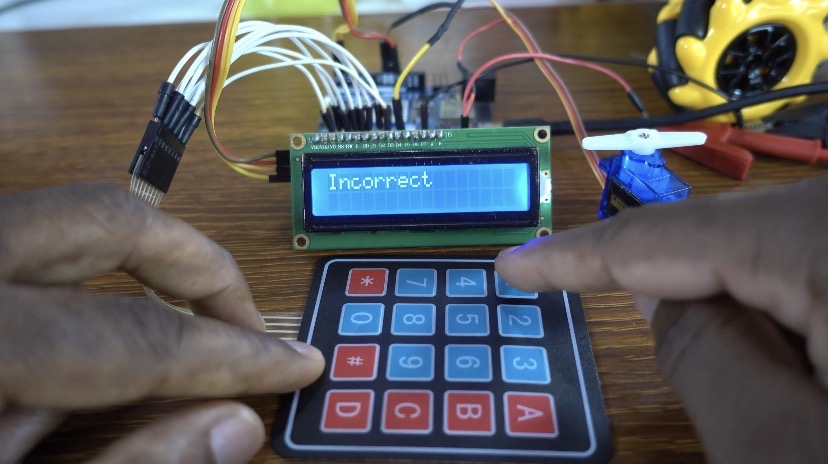
When an incorrect password is entered and confirmed, the LCD displays “Incorrect”, and the servo motor does not move.
If the correct password is entered, the servo motor rotates to 180 degrees, acting as an unlocking mechanism.
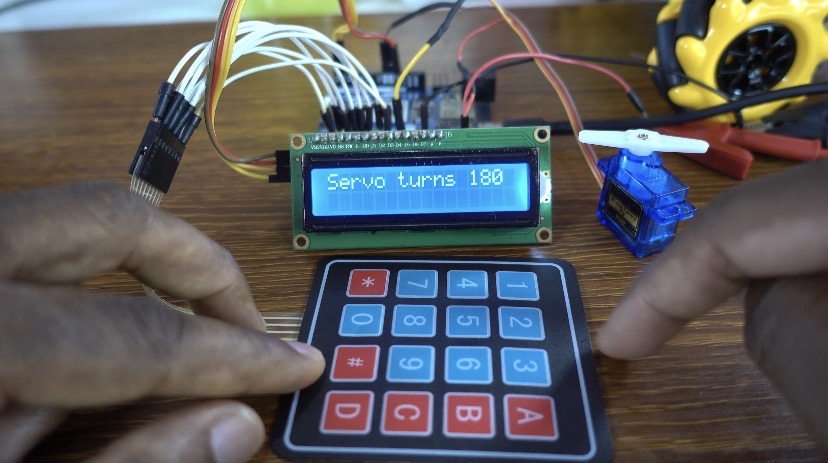
When the correct password is entered again, the servo returns to 0 degrees, locking the system back to its original position.