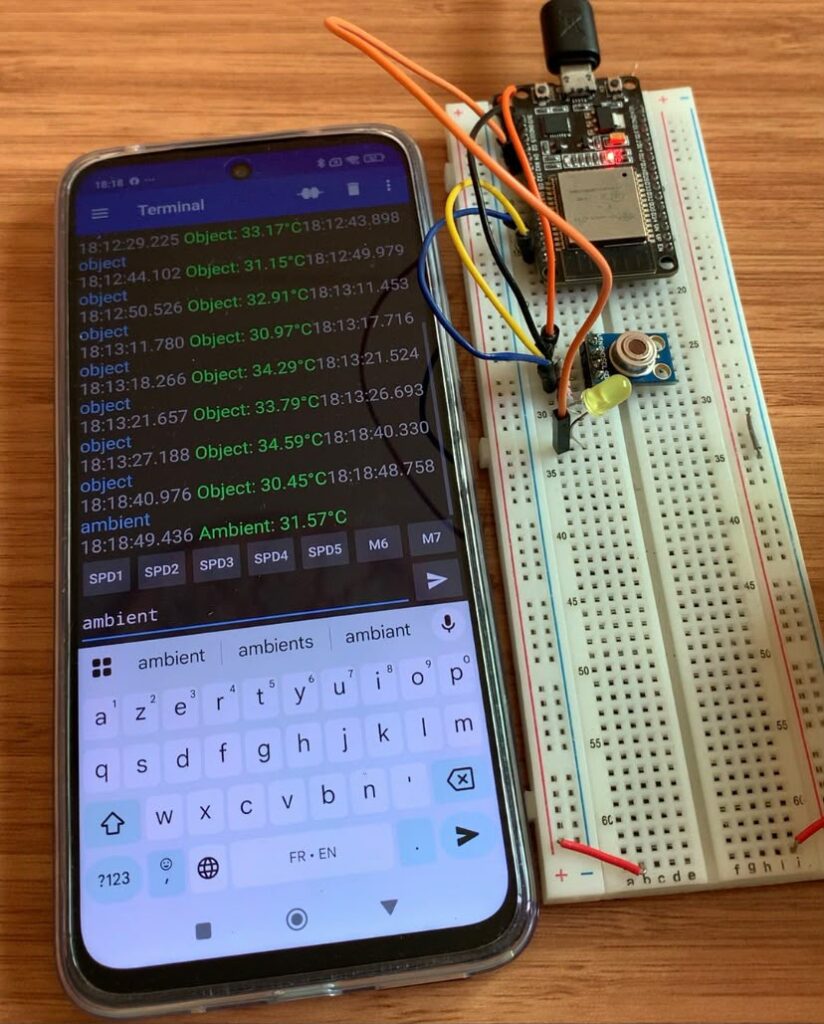

Read Object and Ambient Temperatures via Bluetooth Serial Using ESP32 and MLX90614 Sensor
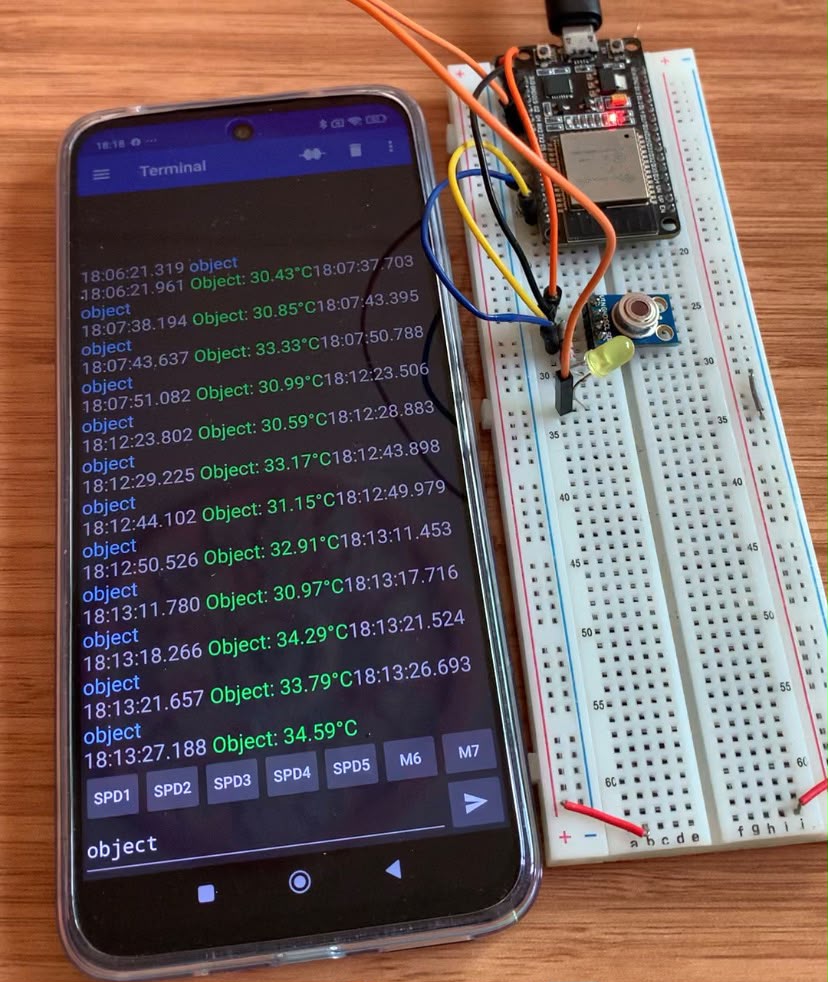
Have you ever wished to construct your own wireless thermometer without fixed display screens or complex wiring? Non-contact temperature sensing is made simple by the MLX90614, however viewing the data remotely typically requires a complicated web server or Wi-Fi configuration. We can couple the sensor immediately with a smartphone terminal app in a matter of seconds by utilizing the ESP32’s included Bluetooth Classic, providing you with real-time ambient and surface temperature measurements while on the go.
Components used
- ESP32 Dev Module
- MLX90614
- LED
- 100Ω resistor
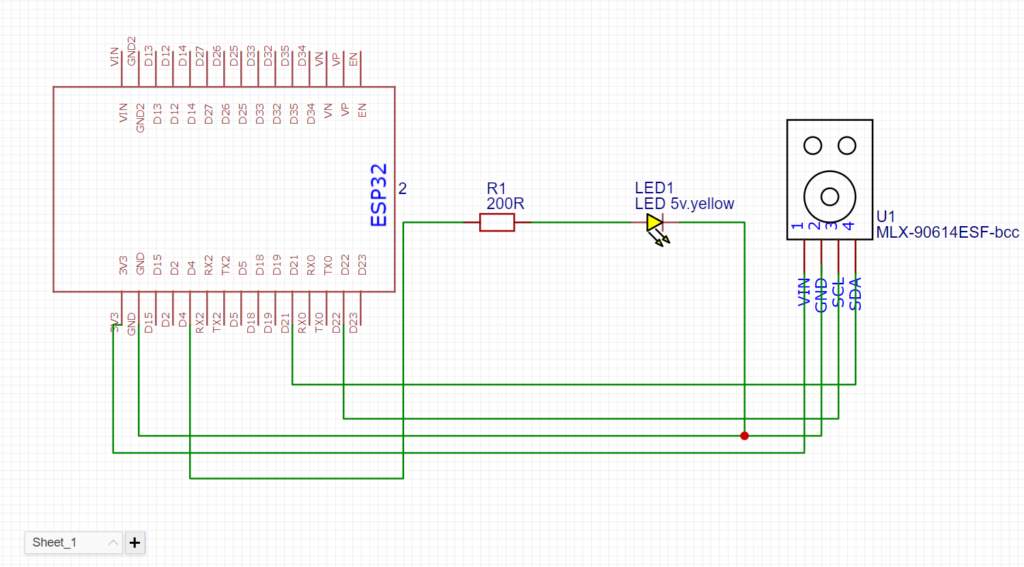
Circuit diagram
Arduino Code
#include "BluetoothSerial.h"
#include <Adafruit_MLX90614.h>

// Check if Bluetooth configs are enabled
#if !defined(CONFIG_BT_ENABLED) || !defined(CONFIG_BLUEDROID_ENABLED)
#error Bluetooth is not enabled! Please run `make menuconfig` to and enable it
#endif

// MLX90614 object
Adafruit_MLX90614 mlx = Adafruit_MLX90614();

// Bluetooth Serial object
BluetoothSerial SerialBT;

// GPIO where DC motor is connected
const int redLED = 4;

// Handle received and sent messages
String message = "";
char incomingChar;

void setup() {
  pinMode(redLED, OUTPUT);
  Serial.begin(115200);

  // Start MLX90614
  if (!mlx.begin()) {
    Serial.println("Error connecting to MLX90614 sensor. Check wiring.");
    while (1);
  }

  // Bluetooth device name
  SerialBT.begin("ESP32");
  Serial.println("The device started, now you can pair it with bluetooth!");
}

void loop() {
  // Read received messages
  if (SerialBT.available()) {
    incomingChar = SerialBT.read();
    if (incomingChar != '\n') {
      message += String(incomingChar);
    } else {
      message.trim(); // remove trailing spaces/newlines
      Serial.println("Received: " + message);
      // Keep message until processed
    }
    Serial.write(incomingChar);
  }

  // ----- CONTROL DC MOTOR SPEED -----
  if (message == "63") {
    analogWrite(redLED, 63);
    Serial.println("Motor Speed: 63");
    message = "";
  }
  else if (message == "126") {
    analogWrite(redLED, 126);
    Serial.println("Motor Speed: 126");
    message = "";
  }
  else if (message == "189") {
    analogWrite(redLED, 189);
    Serial.println("Motor Speed: 189");
    message = "";
  }
  else if (message == "252") {
    analogWrite(redLED, 252);
    Serial.println("Motor Speed: 252");
    message = "";
  }
  else if (message == "0") {
    analogWrite(redLED, 0);
    Serial.println("Motor Stopped");
    message = "";
  }

  // ----- SEND AMBIENT TEMPERATURE -----
  else if (message == "ambient") {
    float ambientTemp = mlx.readAmbientTempC();
    String tempString = "Ambient: " + String(ambientTemp, 2) + "°C";
    const char* tempToSend = tempString.c_str();
    SerialBT.write((const uint8_t*)tempToSend, strlen(tempToSend));
    Serial.println(tempString);
    message = "";
  }

  // ----- SEND OBJECT TEMPERATURE -----
  else if (message == "object") {
    float objectTemp = mlx.readObjectTempC();
    String tempString = "Object: " + String(objectTemp, 2) + "°C";
    const char* tempToSend = tempString.c_str();
    SerialBT.write((const uint8_t*)tempToSend, strlen(tempToSend));
    Serial.println(tempString);
    message = "";
  }

  delay(20);
}
How it works
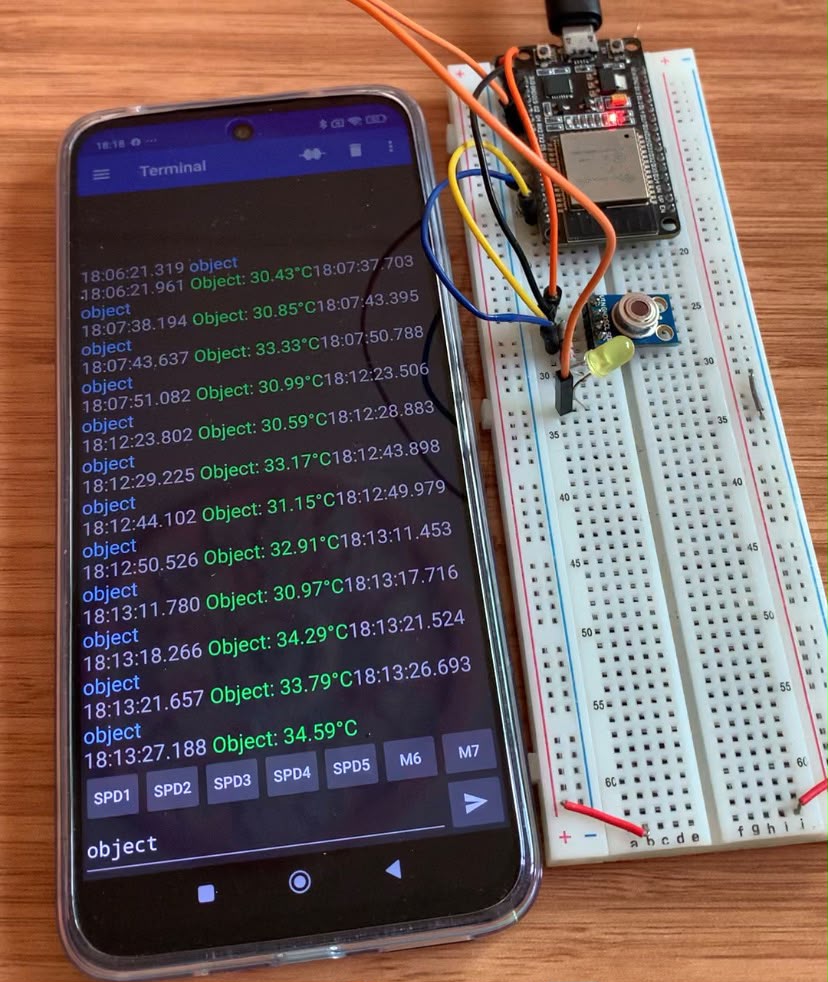
Read object temperature
Read ambient temperature